An integrated development environment (IDE) is a software application that provides comprehensive facilities to computer programmers for software development. An IDE normally consists of at least a source code editor, build automation tools, and a debugger.
Tools provided by an IDE include a text editor, a project editor, a tool bar, and an output viewer. IDEs can perform a variety of functions. Notable ones include write code, compile code, debug code, and monitor resources. Examples of IDEs include NetBeans, Eclipse, IntelliJ, and Visual Studio.


Tools provided by an IDE include a text editor, a project editor, a tool bar, and an output viewer. IDEs can perform a variety of functions. Notable ones include write code, compile code, debug code, and monitor resources. Examples of IDEs include NetBeans, Eclipse, IntelliJ, and Visual Studio.
Why do we use them?
For a professional software engineer to build a large scale systems he needs a technological support at the point of typing the code. At that point IDE comes in and helps the developer. The developers who are skilled in IDE can successfully understand, correct and improve large software systems faster.
What is a difference between a code editor and an IDE?
Generally the IDEs take you to a whole new level, particularly things like code completion, while typing code the IDEs will be able to guess what you’re about to type and a drop down list appears and select from them which makes the coding very easier. Moreover during compilation it is difficult to check errors in notepad or text-editors whereas in IDE things are bit simpler.
Features of IDE
*It supports for coding by easy navigation through codes and code completion
*It is very easier to test and debug a code in an integrated development environment than the code editor.
*One of the most important useful feature of an IDE is support for refactoring.. i.e It helps programmers in differentiating the names of class, variables, packages, etc.
*It provides support for IDE independent, cross platform, standardized by helping in compilation, testing, packaging and automated quality assurance.
Properties of IDE
*Language aware editing.
*Project definition facilities.
*Integrated compilation.
*Integrated stepwise execution.
Advantages of using IDEs
*Reformat coding.
*Check matching braces.
*Single step through a function.
*Traverse a package hierarchy searching for all the instances of a specific string.
*Helps in generating the UML diagram.
Some of the best IDEs
*Eclipse- particularly for Java.
*Visual Studio- for programming languages like C, C++, C#.
*Android Studio- particularly for Android Java.
*Pycharm- Particularly for Python.
*RubyMine-Particularly for ruby on rails.

Requirements for a Good Python Coding Environment
So what things do we really need in a coding environment? Feature lists vary from app to app, but there are a core set of features that makes coding easier:
- Save and reload code files
If an IDE or editor won’t let you save your work and reopen everything later, in the same state it was in when you left, it’s not much of an IDE. - Run code from within the environment
Similarly, if you have to drop out of the editor to run your Python code, then it’s not much more than a simple text editor. - Debugging support
Being able to step through your code as it runs is a core feature of all IDEs and most good code editors. - Syntax highlighting
Being able to quickly spot keywords, variables, and symbols in your code makes reading and understanding code much easier. - Automatic code formatting
Any editor or IDE worth it’s salt will recognize the colon at the end of awhileorforstatement, and know the next line should be indented.
Of course, there are lots of other features you might want, like source code control, an extension model, build and test tools, language help, and so on. But the above list is what I’d see as “core features” that a good editing environment should support.
With these features in mind, let’s take a look at some general purpose tools we can use for Python development.
General Editors and IDEs with Python Support.
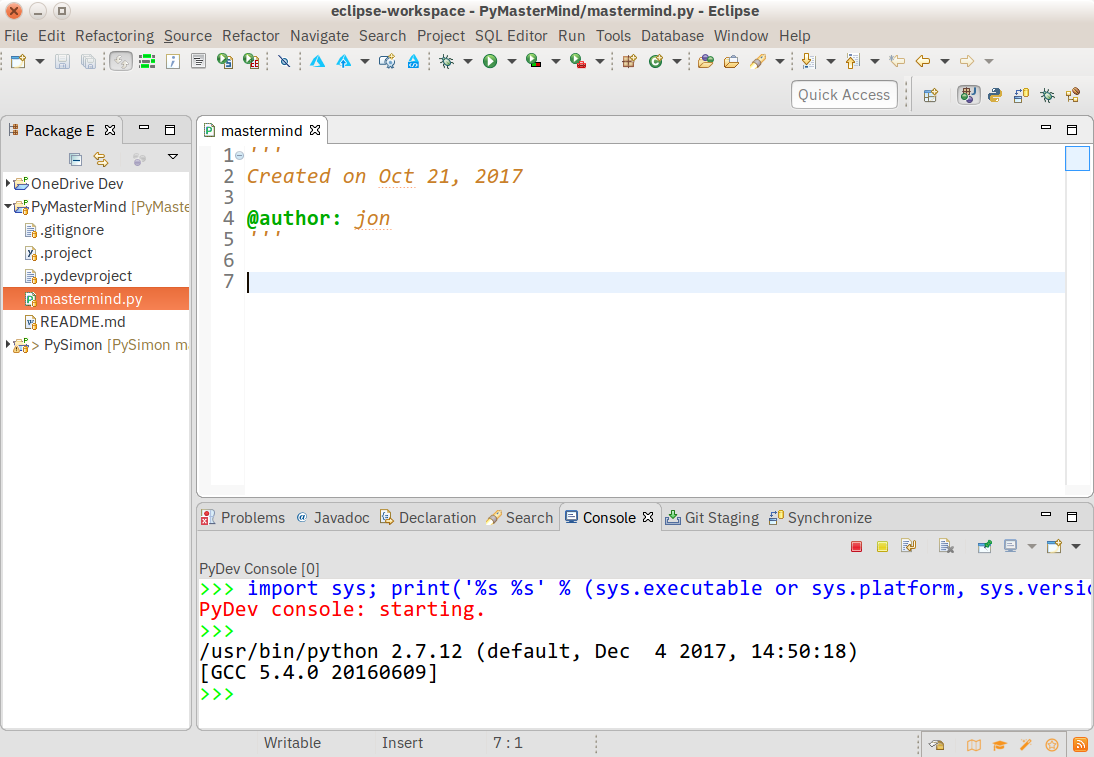
Eclipse + PyDev
If you’ve spent any amount of time in the open-source community, you’ve heard about Eclipse. Available for Linux, Windows, and OS X
at, Eclipse is the de-facto open-source IDE for Java development. It has a rich marketplace of extensions and add-ons, which makes Eclipse useful for a wide range of development activities.
One such extension is PyDev, which enables Python debugging, code completion, and an interactive Python console. Installing PyDev into Eclipse is easy: from Eclipse, select Help, Eclipse Marketplace, then search for PyDev. Click Install and restart Eclipse if necessary.
Pros: If you’ve already got Eclipse installed, adding PyDev will be quicker and easier. PyDev is very accessible for the experienced Eclipse developer.
Cons: If you’re just starting out with Python, or with software development in general, Eclipse can be a lot to handle. Remember when I said IDEs are larger and require more knowledge to use properly? Eclipse is all that and a bag of (micro)chips.
Sublime Text
Category: Code Editor
Website: http://www.sublimetext.com
Website: http://www.sublimetext.com
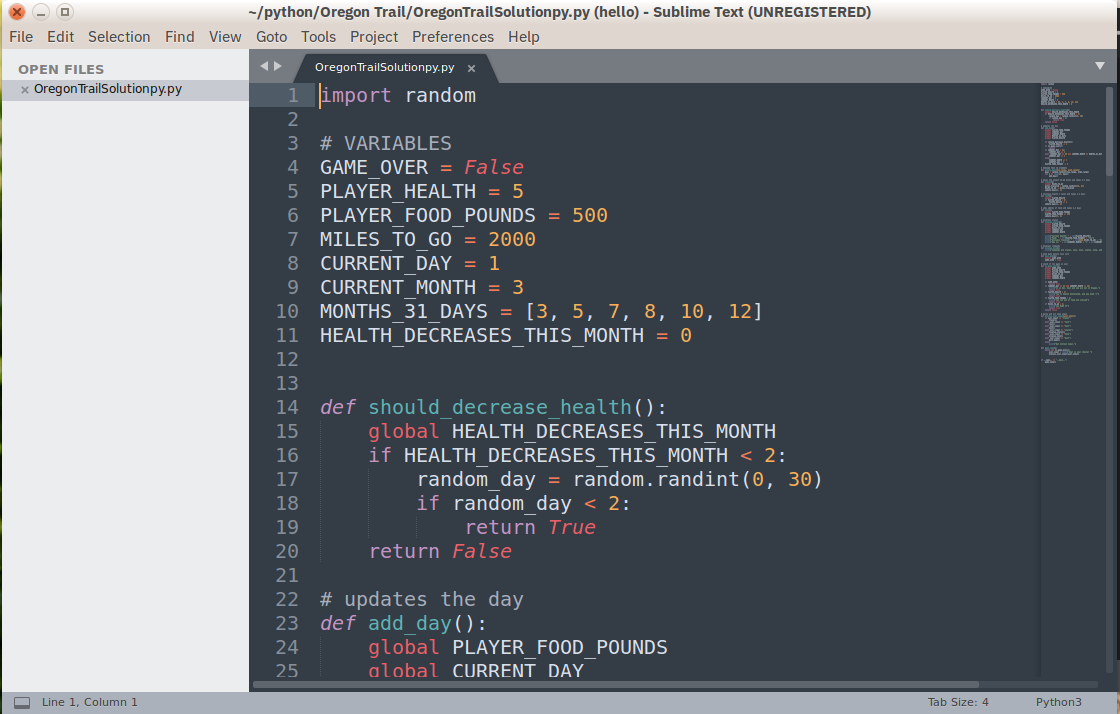
Written by a Google engineer with a dream for a better text editor, Sublime Text is an extremely popular code editor. Supported on all platforms, Sublime Text has built-in support for Python code editing and a rich set of extensions (called packages) that extend the syntax and editing features.
Installing additional Python packages can be tricky: all Sublime Text packages are written in Python itself, and installing community packages often requires you to execute Python scripts directly in Sublime Text.
Pros: Sublime Text has a great following in the community. As a code editor, alone, Sublime Text is fast, small, and well supported.
Cons: Sublime Text is not free, although you can use the evaluation version for an indefinite period of time. Installing extensions can be tricky, and there’s no direct support for executing or debugging code from within the editor.
To make the most of your Sublime Text setup, read our Python + Sublime Text setup guide and consider our in-depth video course that shows you how to craft an effective Python development setup with Sublime Text 3.
Atom
Category: Code Editor
Website: https://atom.io/
Website: https://atom.io/
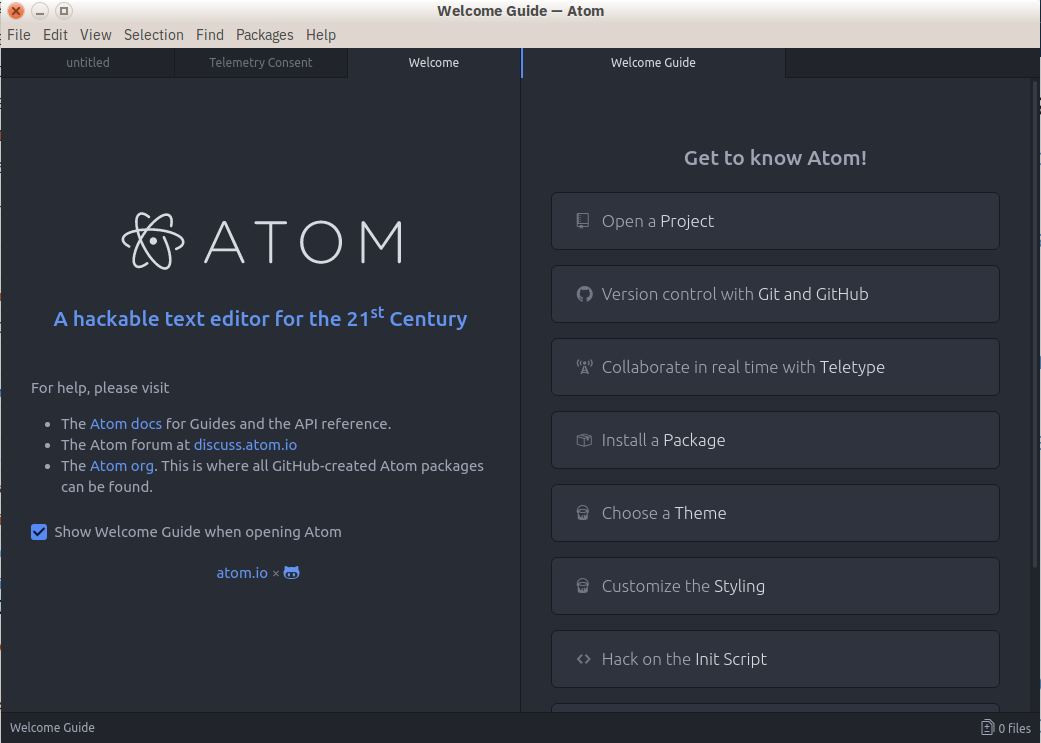
Available on all platforms, Atom is billed as the “hackable text editor for the 21st Century.” With a sleek interface, file system browser, and marketplace for extensions, open-source Atom is built using Electron, a framework for creating desktop applications using JavaScript, HTML, and CSS. Python language support is provided by an extension that can installed when Atom is running.
Pros: It has broad support on all platforms, thanks to Electron. Atom is small, so it downloads and loads fast.
Cons: Build and debugging support aren’t built-in but are community provided add-ons. Because Atom is built on Electron, it’s always running in a JavaScript process and not as a native application.
GNU Emacs
Category: Code Editor
Website: https://www.gnu.org/software/emacs/
Website: https://www.gnu.org/software/emacs/
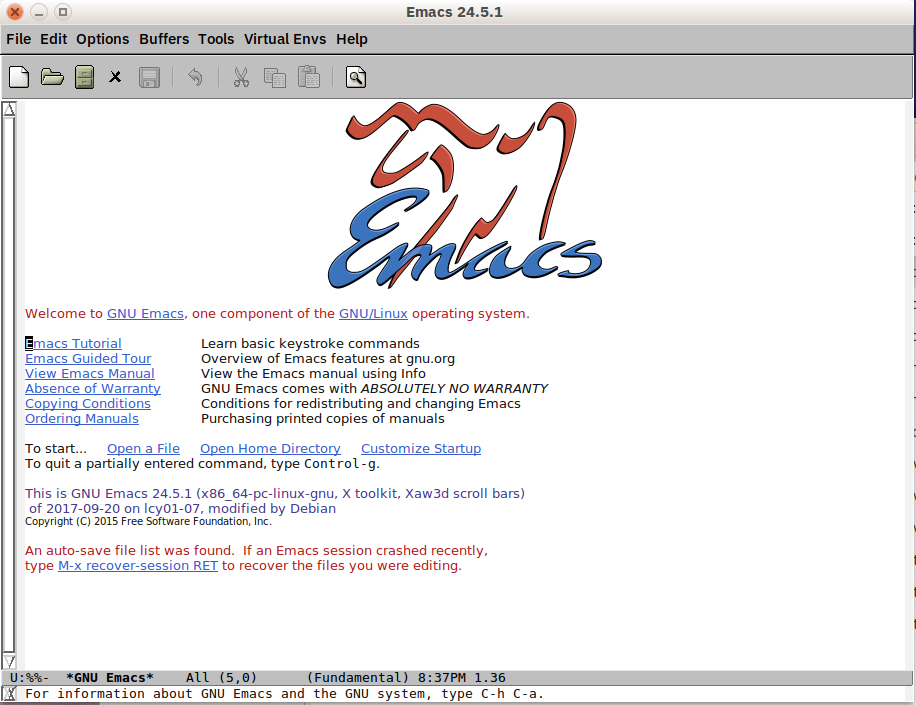
Back before the iPhone vs Android war, before the Linux vs Windows war, even before the PC vs Mac war, there was the Editor War, with GNU Emacs as one of the combatants. Billed as “the extensible, customizable, self-documenting, real-time display editor,” GNU Emacs has been around almost as long as UNIX and has a fervent following.
Always free and available on every platform (in one form or another), GNU Emacs uses a form of the powerful Lisp programming language for customization, and various customization scripts exist for Python development.
Pros: You know Emacs, you use Emacs, you love Emacs. Lisp is a second language, and you know the power it gives you means you can do anything.
Cons: Customization means writing (or copy/pasting) Lisp code into various script files. If it’s not already provided, you may have to learn Lisp to figure out how to do it.
Plus, you know that Emacs would be a great operating system, if it only had a good text editor…
Be sure to consult our Python + Emacs setup guide to make the most of this setup.
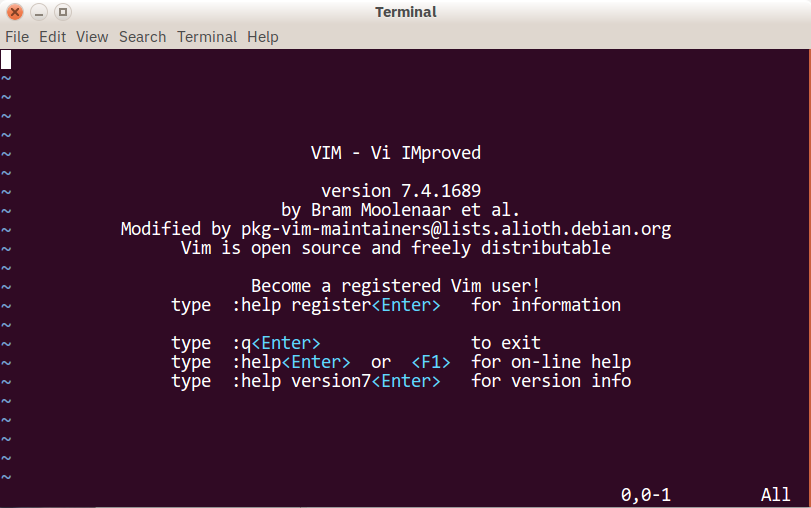
Vi / Vim
Category: Code Editor
Website: https://www.vim.org/
Website: https://www.vim.org/
On the other side of the Text Editor War stands VI (aka VIM). Included by default on almost every UNIX system and Mac OS X, VI has an equally fervent following.
VI and VIM are modal editors, separating the viewing of a file from the editing of a file. VIM includes many improvements on the original VI, including an extensibility model and in-place code building. VIMScripts are available for various Python development tasks.
Pros: You know VI, you use VI, you love VI. VIMScripts don’t scare you, and you know you bend it to your will.
Cons: Like Emacs, you’re not comfortable finding or writing your own scripts to enable Python development, and you’re not sure how a modal editor is supposed to work.
Plus, you know that VI would be a great text editor, if only it had a decent operating system.
If you’re going with this combination, check out our Python + VIM setup guide with tips and plugin recommendations.
Visual Studio
Category: IDE
Website: https://www.visualstudio.com/vs/
Python tools: Python Tools for Visual Studio, aka PTVS
Website: https://www.visualstudio.com/vs/
Python tools: Python Tools for Visual Studio, aka PTVS
Built by Microsoft, Visual Studio is a full-featured IDE, in many ways comparable to Eclipse. Built for Windows and Mac OS only, VS comes in both free (Community) and paid (Professional and Enterprise) versions. Visual Studio enables development for a variety of platforms and comes with its own marketplace for extensions.
Python Tools for Visual Studio (aka PTVS) enables Python coding in Visual Studio, as well as Intellisense for Python, debugging, and other tools.
Pros: If you already have Visual Studio installed for other development activities, adding PTVS is quicker and easier.
Cons: Visual Studio is a big download for just Python. Plus, if you’re on Linux, you’re out of luck: there’s no Visual Studio install for that platform.
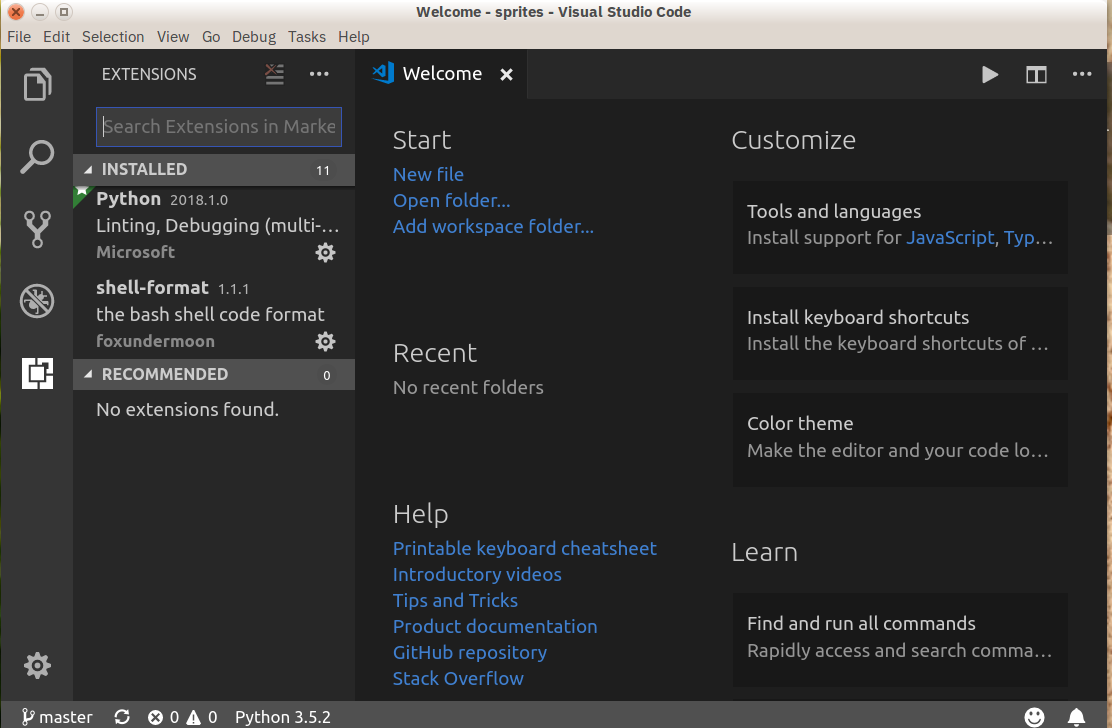
Visual Studio Code
Category: Code Editor
Website: https://code.visualstudio.com/
Python tools: https://marketplace.visualstudio.com/items?itemName=ms-python.python
Website: https://code.visualstudio.com/
Python tools: https://marketplace.visualstudio.com/items?itemName=ms-python.python
Not to be confused with full Visual Studio, Visual Studio Code (aka VS Code) is a full-featured code editor available for Linux, Mac OS X, and Windows platforms. Small and light-weight, but full-featured, VS Code is open-source, extensible, and configurable for almost any task. Like Atom, VS Code is built on Electron, so it has the same advantages and disadvantages that brings.
Installing Python support in VS Code is very accessible: the Marketplace is a quick button click away. Search for Python, click Install, and restart if necessary. VS Code will recognize your Python installation and libraries automatically.
Pros: Thanks to Electron, VS Code is available on every platform, surprisingly full-featured despite having a small footprint, and open-source.
Cons: Electron means VS Code is not a native app. Plus, some people may have principled reasons to not use Microsoft resources.
Be sure to consult our tutorial on using Visual Studio Code for Python development, as well as the companion video course, to make the most of this setup.
Python-Specific Editors and IDEs
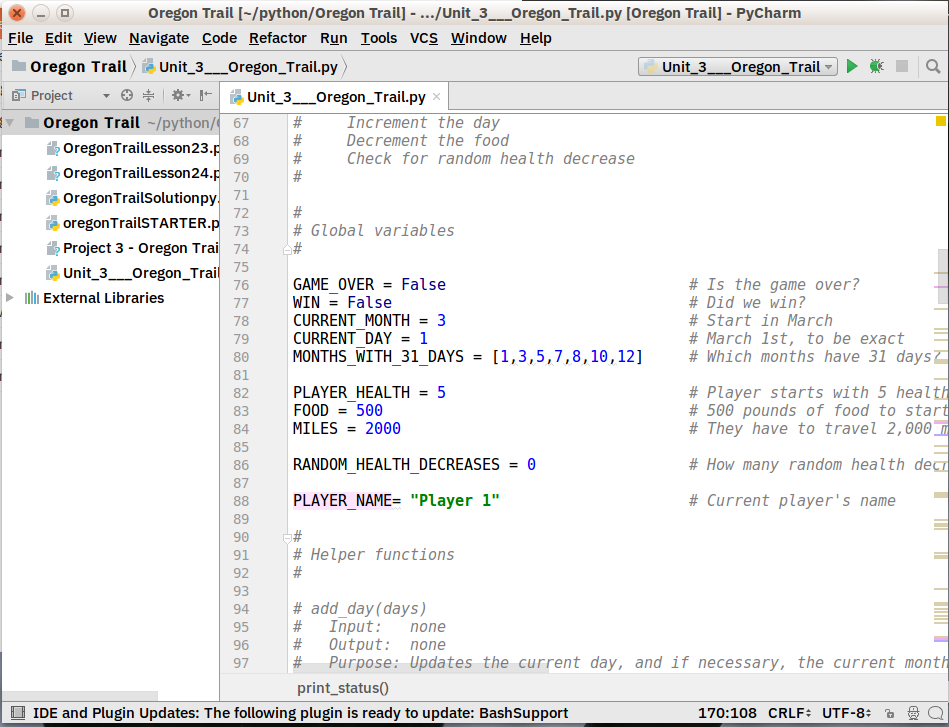
PyCharm
Category: IDE
Website: https://www.jetbrains.com/pycharm/
Website: https://www.jetbrains.com/pycharm/
One of the best (and only) full-featured, dedicated IDEs for Python is PyCharm. Available in both paid (Professional) and free open-source (Community) editions, PyCharm installs quickly and easily on Windows, Mac OS X, and Linux platforms.
Out of the box, PyCharm supports Python development directly. You can just open a new file and start writing code. You can run and debug Python directly inside PyCharm, and it has support for source control and projects.
Pros: It’s the de facto Python IDE environment, with tons of support and a supportive community. It edits, runs, and debugs Python out of the box.
Cons: PyCharm can be slow to load, and the default settings may need tweaking for existing projects.
Spyder
Category: IDE
Website: https://github.com/spyder-ide/spyder
Website: https://github.com/spyder-ide/spyder
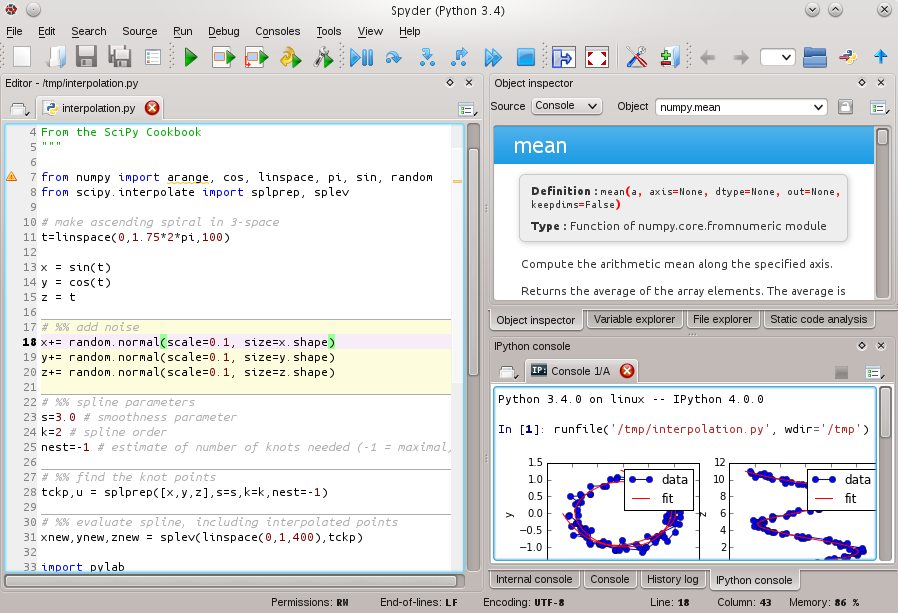
Spyder is an open-source Python IDE that’s optimized for data science workflows. Spyder comes included with the Anaconda package manager distribution, so depending on your setup you may already have it installed on your machine.
What’s interesting about Spyder is that it’s target audience is data scientists using Python. You’ll notice this throughout. For example, Spyder integrates well with common Python data science libraries like SciPy, NumPy, and Matplotlib.
Spyder features most of the “common IDE features” you might expect, such as a code editor with robust syntax highlighting, Python code completion, and even an integrated documentation browser.
A special feature that I haven’t seen in other Python editing environments is Spyder’s “variable explorer” that allows you to display data using a table-based layout right inside your IDE. Personally, I usually don’t have a need for this but it does look neat. If you regularly do data science work using Python, you might fall in love with this unique feature. The IPython/Jupyter integration is nice as well.
Overall, I’d say that Spyder feels more basic than other IDEs. I like to view it more as a special purpose tool rather than something I use as my primary editing environment every day. What is nice about this Python IDE is that it is available for free on Windows, macOS, and Linux and that it is fully open-source software.
Pros: You’re a data scientist using the Anaconda Python distribution.
Cons: More experienced Python developers might find Spyder too basic to work with on a daily basis and instead opt for a more complete IDE or customized editor solution.
Thonny
Category: IDE
Website: http://thonny.org/
Website: http://thonny.org/
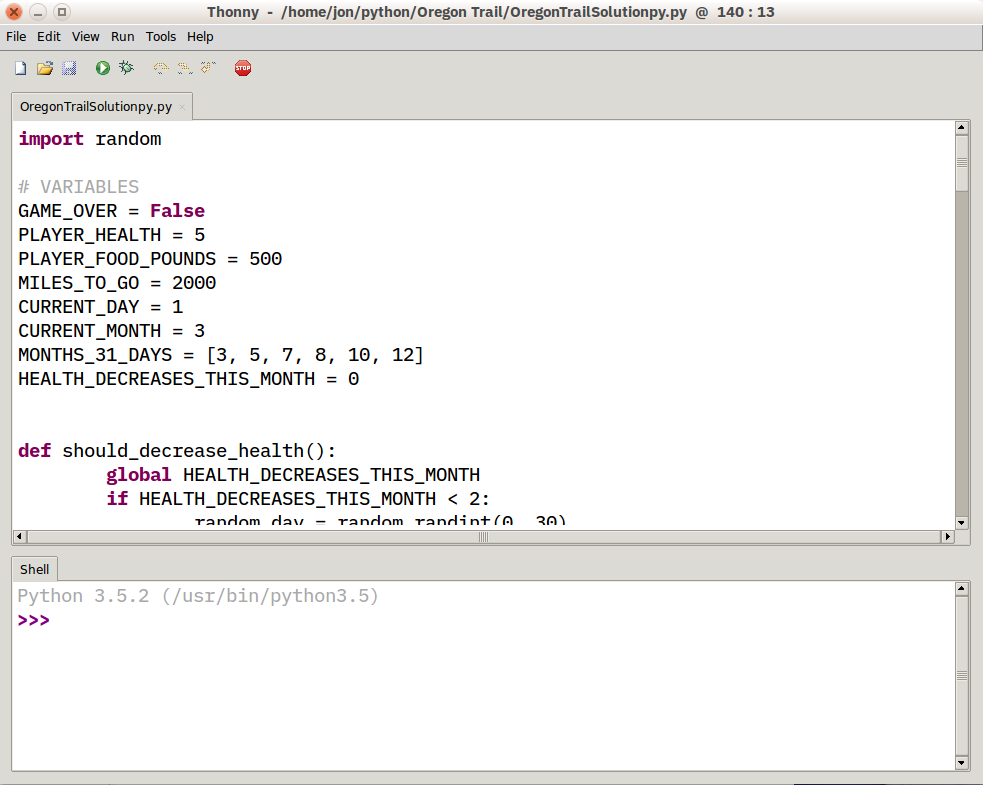
A recent addition to the Python IDE family, Thonny is billed as an IDE for beginners. Written and maintained by the Institute of Computer Science at the University of Tartu in Estonia, Thonny is available for all major platforms, with installation instructions on the site.
By default, Thonny installs with its own bundled version of Python, so you don’t need to install anything else new. More experienced users may need to tweak this setting so already installed libraries are found and used.
Pros: You’re a beginning Python user, and want an IDE that’s ready to roll.
Cons: More experienced Python developers will find Thonny too basic for most uses, and the built-in interpreter is something to work around, not with. Plus, as a new tool, there may be issues you find which may not have immediate solutions.
If you’re interested in using Thonny as your Python editor, be sure to read our dedicated article on Thonny which goes into more depth and shows you additional features.
Which Python IDE is Right for You?
Only you can decide that, but here are some basic recommendations:
- New Python developers should try solutions with as few customizations as possible. The less gets in the way, the better.
- If you use text editors for other tasks (like web pages or documentation), look for code editor solutions.
- If you’re already developing other software, you may find it easier to add Python capabilities to your existing toolset.


No comments:
Post a Comment
if you have any doubt please let me know.